
Most growing companies choose HubSpot to manage customer relationships and Jira to handle projects and support. Both tools work well on their own, but teams spend a lot of time switching between them to get the full picture of what's happening with customers.
The friction appears in daily work. A support agent receives a customer ticket. Before replying, they check HubSpot to see if it's a high-value account, whether there are open deals, what service tier they're on. They search the contact, open the company record, scan recent deals, then go back to Jira. Five minutes later, they still haven't started solving the issue.
A product manager needs to prioritize a bug. They want to know if enterprise customers are affected, if deals are at risk. The data is in HubSpot, which means opening another tool and interrupting their work in Jira.
This happens constantly across support, engineering, and product teams. Customer context lives in HubSpot while work happens in Jira. Getting both views means switching between tools.
HubSpot Jira integration puts CRM data where teams actually work. Customer information appears in Jira tickets, deal status shows up in project boards, account details are visible during sprint planning.
This guide explains how the integration works, when it's useful, and how to set it up.
Why Teams Connect HubSpot to Jira
Most growing organizations end up with similar tool stacks. HubSpot handles marketing, sales, and customer relationship management. Jira manages software development, project tracking, and customer support through Jira Service Management. Both tools work well independently, but they serve different parts of the organization.
The gap becomes visible when teams need to make decisions that require information from both systems:
Support teams see tickets in Jira Service Management but need to know the customer's contract value, renewal date, or recent interactions from HubSpot to prioritize effectively.
Engineering teams work on bugs and features in Jira but lack visibility into which customers are affected or how issues impact active sales opportunities.
Sales operations track deals in HubSpot but struggle to see whether requested features are in development or when bugs affecting their prospects will be resolved.
Product managers prioritize roadmaps in Jira while customer feedback, usage data, and account information live in HubSpot, making it difficult to align development with revenue opportunities.
Without integration, information flows through manual processes. Someone copies customer details from HubSpot into Jira comments. Another person screenshots deal information for a sprint review. A third maintains a spreadsheet mapping customers to feature requests. These workarounds consume time and introduce errors as information drifts out of sync.
Integration eliminates this friction by making CRM data accessible within Jira automatically.
How HubSpot Jira Integration Works
A Jira HubSpot integration creates a live connection between the two platforms, allowing CRM records to appear directly in Jira without manual copying or exporting.
The technical mechanism is straightforward. HubSpot provides an API that exposes contacts, companies, deals, and tickets. Integration tools use this API to pull data from HubSpot and display it within Jira's interface. Updates in HubSpot propagate to Jira automatically, keeping information current without ongoing manual work.
Integration tools vary in how they surface HubSpot data within Jira. Different connector apps implement different features and user interfaces. When evaluating tools, review their documentation and screenshots to understand how they display CRM information in your Jira environment.
Access control models vary by integration tool. For example, Presago's HubSpot CRM Connector for Jira uses a centralized connection approach: once an admin authorizes the integration, any user with Jira access can view the embedded HubSpot data. Other connectors may implement different permission models. When evaluating tools, verify how each handles data access to ensure it aligns with your security requirements.
Setting Up HubSpot CRM Connector for Jira Integration
The following setup process describes a typical workflow using HubSpot CRM Connector for Jira as an example. Other integration tools may follow different approaches, so consult your chosen connector's documentation for specific instructions.
The setup process involves two main steps: connecting the systems and configuring what data appears where.
Phase 1: Establish the Connection
HubSpot Jira integration requires a connector app from the Atlassian Marketplace. These apps act as the bridge between HubSpot's API and Jira's interface.
Most connector apps require admin permissions in both Jira and HubSpot since they need to read CRM data and display it within Jira. After installation, the connector establishes a secure connection with HubSpot. This connection allows the connector to access your HubSpot data and display it within Jira. The authentication process requests specific permissions like read access to contacts, companies, deals, and tickets. Once authorized, the connector can pull data from HubSpot on behalf of Jira users.
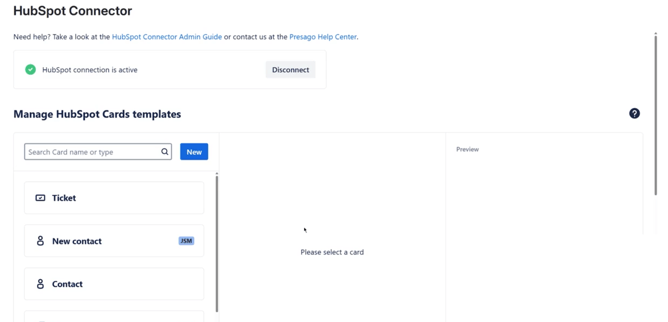
This initial connection typically completes in a few minutes. The connector syncs HubSpot's data schema, learning which properties exist in your CRM (custom fields, pipeline stages, contact properties, etc.). This schema information helps the connector present configuration options that match your actual HubSpot setup.
Phase 2: Configure Data Display
With the connection established, teams decide what CRM information should appear in Jira and where.
HubSpot CRM Connector for Jira uses two main components: Views and Cards.
Creating Views starts with selecting a data type (contacts, companies, deals, or tickets). Then you apply filters based on HubSpot properties. A sales team might create a view showing "Open deals above $50,000" or "Contacts in negotiation stage." These filters use HubSpot's native property values, so anything you can filter in HubSpot can become a view in Jira.
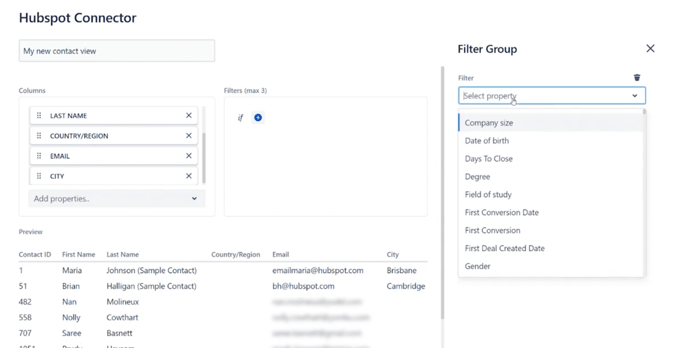
Views support customization of visible columns. Instead of showing every property, you select the 5-10 most relevant fields. This keeps views scannable while providing essential context. For example, a deal view might show company name, deal value, stage, and close date providing enough information to understand priority without overwhelming detail.
Once created, views can be attached to Jira dashboards as gadgets or embedded directly in specific projects. A customer success team might add a "High-Risk Renewals" view to their main dashboard, while an engineering team embeds an "Accounts Affected by Known Issues" view in their bug tracking project.
Configuring Cards involves creating templates. These templates define which HubSpot properties appear when someone attaches a CRM record to a Jira issue. A support team's template might show contact name, email, company, support tier, and recent ticket history. A sales operations template might focus on deal value, stage, owner, and expected close date.
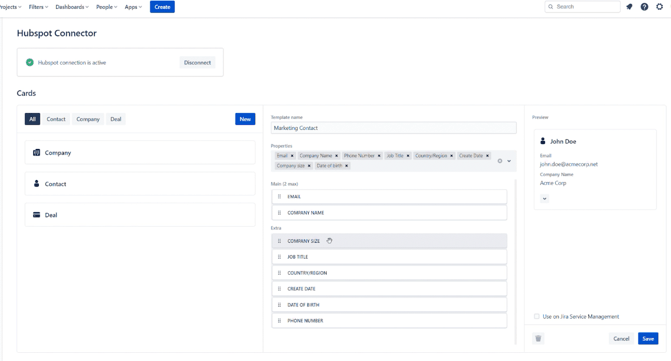
Templates serve two purposes. First, they keep cards focused on relevant information rather than displaying every available property. Second, they establish consistency. everyone on the team sees the same data structure when they attach cards.
Jira Service Management Integration
For support teams using Jira Service Management, integration tools can provide a contextual panel that displays HubSpot information directly within tickets. Implementation varies by connector.
With HubSpot CRM Connector for Jira, when you open a ticket in JSM, click the HubSpot button in the right panel. If the ticket's contact is synchronized in HubSpot, their information appears automatically. Contact details, company information, recent deals, and support history all visible without searching or switching tools.
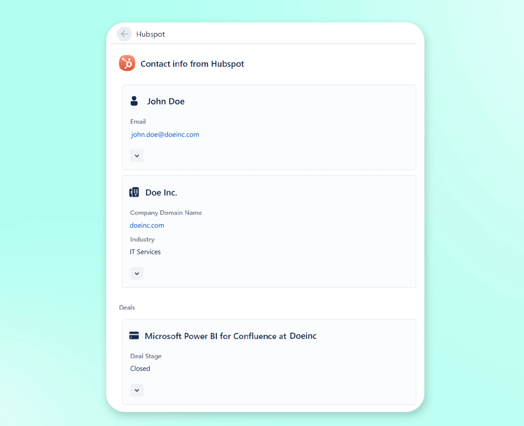
The information shown depends on your HubSpot setup and the connector's configuration. Support agents get immediate context about who they're helping: account tier, contract status, open opportunities, recent interactions. This eliminates the need to open HubSpot separately for every customer inquiry.
For more details on using HubSpot tickets alongside Jira, see our article on HubSpot CRM Connector updates for tickets and dashboard widgets.
Advanced Configuration Considerations
Beyond basic setup, connector configuration affects how CRM data fits your team's workflow. The following features describe capabilities available in HubSpot CRM Connector for Jira. Other integration tools may offer different configuration options.
Template customization controls which HubSpot properties appear in cards and views. Instead of showing every available field, you select the 5-10 most relevant properties for each use case. A support template might show contact name, email, company, and support tier. A sales template might focus on deal value, stage, owner, and close date.
Access controls manage who can see what CRM data within Jira. Presago's connector allows admins to control data visibility, ensuring sensitive information like revenue or contract details remains restricted to appropriate team members while basic contact information is available more broadly.
Data refresh varies by integration tool. Some refresh views in real-time when you open them, pulling current data from HubSpot's API. Others may cache data briefly to improve performance. Understanding your tool's refresh behavior helps set appropriate expectations about data freshness.
Common Use Cases Across Teams
Understanding abstract capabilities matters less than seeing how teams actually use CRM integration in their daily work. Here are four real-world examples showing how different teams solved specific problems by bringing HubSpot data into Jira.
Support Operations: Context Before Response
A B2B SaaS company's support team handled 200+ tickets daily across customer tiers from free trials to enterprise accounts. Without integration, agents opened HubSpot for every ticket to check account status, leading to 3-5 minute delays before first response.
After integrating HubSpot with JSM, relevant customer context auto-attached to each ticket. Agents immediately saw contract tier, renewal date, open deals, and recent touchpoints. This eliminated HubSpot lookups and enabled faster prioritization.
High-value enterprise tickets with urgent issues got immediate attention. Free trial users with basic questions were handled appropriately. The team reduced average first response time from 8 minutes to 3 minutes while improving prioritization accuracy.
Product Prioritization: Revenue Impact Visibility
A product team at a mid-market software company prioritized their roadmap in Jira but struggled to understand revenue impact. Feature requests mentioned "several customers asking" without quantifying deal value or urgency.
Integrating HubSpot with Jira made revenue data visible during planning. When reviewing feature requests, the PM saw which customers had requested each feature and the aggregate deal value at risk. A view showing "Open Deals Blocked by Missing Features" revealed that three features were blocking $400K in pipeline.
This visibility shifted prioritization. The roadmap balanced technical debt with features that unblocked revenue. Sales had clearer timelines for customer conversations. The product team closed $200K in deals within 90 days by completing features that were explicitly blocking those opportunities.
Bug Triage: Customer Impact Assessment
An engineering team worked through 150+ active bugs without clear prioritization criteria beyond severity ratings. Customer impact remained invisible. A "low severity" bug might affect the company's largest customer, but developers had no way to know.
After integration, bug tickets showed affected customer information when sales or support tagged the HubSpot contact. A dashboard view aggregated "Bugs Affecting Enterprise Accounts" and "Bugs Blocking Active Deals." This transformed triage meetings.
The team fixed a "medium priority" bug within 48 hours after learning it was blocking a $150K deal close. Another bug sat at "low priority" until they saw it affected 15 enterprise customers, prompting escalation. Time spent in triage meetings dropped by 30% because customer impact was immediately visible.
Sales Operations: Development Visibility
A sales team at a growth-stage startup frequently asked engineering about feature timelines. These ad-hoc conversations disrupted development and still left sales without reliable information for customer conversations.
HubSpot Jira integration gave sales visibility into development status. When customers requested features, sales created or linked to Jira issues. As development progressed, they saw real-time status in HubSpot. A view showing "Completed Features This Quarter" provided concrete talking points for renewal conversations.
Engineering interruptions decreased by 60%. Sales had factual information for customer conversations about timelines. Customers received proactive updates when requested features launched. Both teams spent less time on status updates and more time on their core work.
Troubleshooting Common Issues
Even straightforward integrations encounter occasional problems. Most issues fall into a few categories with predictable solutions. The following troubleshooting steps apply specifically to HubSpot CRM Connector for Jira. Other tools may have different common issues.
Authorization failures usually indicate permission problems. The HubSpot user who authorized the connection may not have API access enabled, or their permissions may have changed. Check that the connected HubSpot user has appropriate API permissions and hasn't left the organization. If permissions changed, re-authorize the connection with an admin account.
Missing data in views often means filters are too restrictive or data hasn't synced yet. Start by removing all filters temporarily to see if data appears. If it does, your filters are excluding records you expected to see. If data still doesn't appear, the connector may still be performing its initial sync, which can take several minutes for large HubSpot databases.
Cards not auto-attaching in JSM typically relates to email matching or template configuration. Verify that incoming email addresses match contact emails in HubSpot exactly since even small differences prevent matching. Confirm that your template is marked for JSM auto-attachment in its settings. Test by creating a ticket manually with a known HubSpot contact email.
Slow performance when loading views happens with large datasets or complex filters. Views showing hundreds of records can be slow to render. Add date range filters (e.g., "deals created in last 90 days") to reduce dataset size. Consider splitting large views into multiple smaller, focused views organized by team or use case.
Permission errors surface when users try to view data they can't access in HubSpot. This is correct behavior: the integration shouldn't expose data beyond HubSpot's permissions. If users need access, grant it in HubSpot. If they shouldn't have access, the integration is working as designed by blocking it.
For technical issues, check the integration tool's documentation or contact their support team with specific error messages and reproduction steps.
Choosing an Integration Tool
The Atlassian Marketplace offers several apps for connecting HubSpot to Jira. Most provide similar core functionality but differ in implementation details, ease of use, and advanced features.
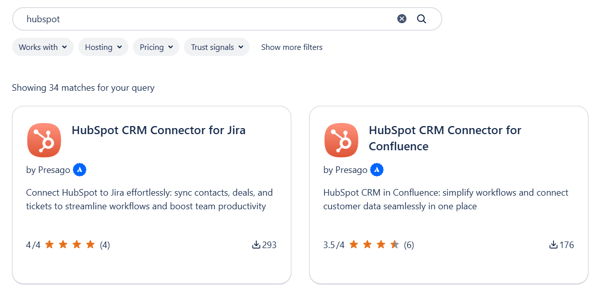
When evaluating options, consider these factors:
Setup simplicity: How much configuration does initial setup require? Some tools automate most technical details, while others require manual URL construction or complex parameter specification.
Support and documentation: What happens when you encounter problems? Look for vendors with responsive support teams and comprehensive documentation covering common scenarios.
Pricing model: How does the tool charge: per user, per instance, or flat rate? Consider both current team size and planned growth when evaluating costs.
Among available options, HubSpot CRM Connector for Jira offers a straightforward setup experience with strong permission handling and enterprise-grade security features. The tool handles OAuth authentication automatically and respects HubSpot permissions.
For teams also using Confluence, consider extending CRM integration to documentation and knowledge management with HubSpot CRM Connector for Confluence, which brings the same customer context into meeting notes, project documentation, and team wikis.
FAQ
How often does data sync between HubSpot and Jira?
Sync frequency depends on the integration tool and data type. With HubSpot CRM Connector for Jira, views typically refresh when you open them, pulling current data from HubSpot's API. Cards may cache data for a few minutes to improve performance, with automatic background updates. Most tools refresh data frequently enough that you see changes within seconds to minutes of updates in HubSpot.
Can I restrict which HubSpot properties are visible in Jira?
It depends on the plugin you choose. HubSpot CRM Connector for Jira offers controls over data visibility. Admins can configure which templates are available to specific users or groups, ensuring sensitive information remains restricted to appropriate team members. The specific capabilities vary by tool, so check your connector's documentation for details on available access controls.
Does HubSpot integrate with Jira?
Yes. HubSpot integrates with Jira through connector apps available on the Atlassian Marketplace.
Can I view HubSpot deal fields in Jira issues?
Integration capabilities vary by tool. HubSpot CRM Connector for Jira uses "Cards" and "Views" that you can attach directly to Jira issues. You can show deal properties like value, stage, close date, owner, and any custom fields you've created in HubSpot. With this connector, you configure which deal fields appear by customizing your card templates to show only the information relevant to your team's workflow.
Can I embed HubSpot company details in Jira Service Management tickets?
Integration capabilities for Jira Service Management vary by connector. Presago's HubSpot CRM Connector for Jira automatically displays HubSpot company information within customer tickets. When a ticket arrives, the integration matches the customer's email to their HubSpot contact and displays their associated company details, including account tier, contract status, recent deals, and custom properties. This context appears in a dedicated panel without requiring agents to open HubSpot separately.
What customer context from HubSpot can I see in Jira?
Available customer context varies by connector. HubSpot CRM Connector for Jira can display contact information, company details, deal data, and ticket history from HubSpot. You control which specific fields appear through customizable templates. Other integration tools may offer different data types or configuration options.
Related HubSpot Integration Resources
Getting Started:
- Integrate HubSpot in Jira and Confluence with HubSpot Connector - Overview of both Jira and Confluence connectors
Feature Updates:
- HubSpot CRM Connector: Tickets, Dashboard Widgets and Shortcuts - Latest features including HubSpot tickets support