
Learn how to integrate Power BI with Confluence to embed live dashboards directly in your workspace. This guide covers the Power BI connector setup, embedded reports configuration, and practical integration steps.
Why Teams Need Power BI Integration in Confluence
Teams switch between BI tools, documentation, chats, and spreadsheets all day just to confirm if their data is still current. This constant context switching slows down analysis and increases the risk of errors.
The best way to integrate Power BI with Confluence is through a dedicated connector that embeds live dashboards without technical setup. If your team also uses Jira or monday.com, check out our complete guide to Power BI integrations across all platforms.
The Real Benefits of the Power BI Connector
When you use Power BI inside Confluence, your weekly project page shows live revenue data instead of just mentioning it. The dashboard updates in real time and stays where people work and comment, eliminating the need to switch between tools or track down the latest version.
When your team discusses goals, progress, or blockers, the numbers are right there, live and in context.
Take your quarterly review. Instead of flipping between reports and slides, your team scrolls through a Confluence page with an embedded Power BI report. Live KPIs update as they talk. Someone asks about regional sales, you apply a quick filter, and the answer appears in seconds.
Or consider your sprint retrospective. The team views a live velocity chart in Confluence that updates as they look at it. They spot last week's slowdown and open the discussion thread right below the chart without needing separate tools.
Here's what this means in practice:
Data stays current automatically. Interactive dashboards refresh on their own without manual intervention.
Everyone sees the same numbers. When you embed Power BI reports in Confluence, there's no confusion as to which dataset someone references. Everyone looks at identical data.
Access is straightforward. Users can interact with dashboards directly in Confluence, even without Power BI experience.
Security stays centralized. The Power BI connector uses Power BI Embedded, so authentication and permissions are managed through your existing Power BI setup.
How to Integrate Power BI with Confluence
Connecting Power BI to Confluence is fast and doesn’t require technical setup. You only need your report link and a Confluence page where you want the data to appear.
Grab your embed link
There are two ways to generate the link, both take less than a minute:
A. Copy the report URL directly from your browser’s address bar while viewing your report in Power BI.
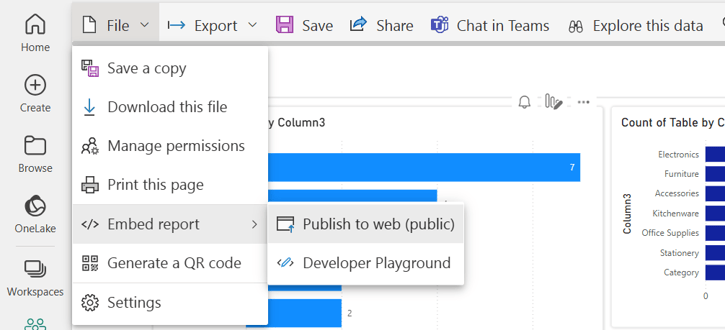
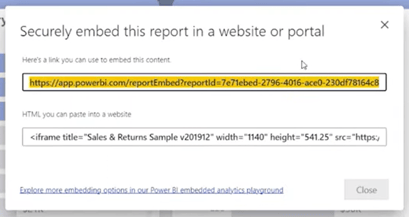
B. Open your report in Power BI > Click File > Embed report > Publish to web > Copy the URL.
Drop it into Confluence
You can insert the report into Confluence in two simple ways:
A. Paste the link directly into any Confluence page. The system automatically detects it as a Power BI embed and shows a live preview of your dashboard.
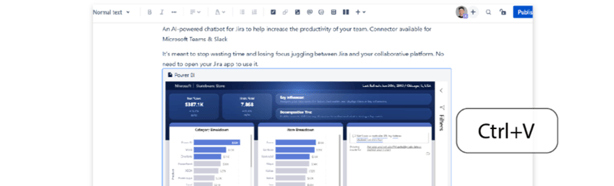
B. Start the Power BI macro in Confluence.
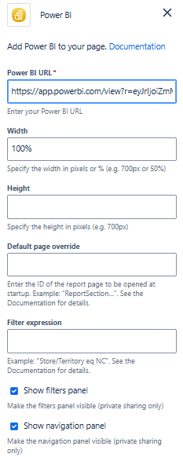
Type /powerbi anywhere in your Confluence editor. A macro pops up. Paste your report URL into the designated field. Now you've got access to the advanced options that power users love.

-
Make it yours: Choose which part of the report should display when the page loads. Apply filters to the displayed data and choose whether to show or hide UI elements. Adjust the size so it fits your page layout perfectly.
That's it. Your Power BI dashboard is now living inside Confluence, updating in real-time, ready for your team.
📺 Watch the full tutorial: Step-by-step Power BI Confluence integration guide
Advanced Techniques and Best Practices
ReportSection Override: Show Only What Matters
Your Power BI report can have twenty different pages, but your sales team only cares about three. Instead of having them scroll through everything, you can display only the specific page you need using the ReportSection override.
-
Open your Power BI report and in the URL look for the part that starts with “ReportSection” (for example:
https://app.powerbi.com/...ReportSection123abc...). -
Copy that segment of the URL because it identifies the exact page of your report (e.g.
ReportSection123abc). -
Paste it into the override field in your Confluence macro.
-
Now only that single page is shown embedded.
Now only that specific page appears in the embed. Think of it as showing someone the relevant chapter instead of handing them the entire book.
Filter Expressions: Personalize the View
When you have a number of data sources in Power BI, showing every little thing to everyone creates noise. Filter expressions allow you to pre-filter information before anyone even opens the dashboard.
For example, you can create a view for the Northeast sales region that excludes West Coast data, build an HR dashboard that shows only your department’s statistics, or set up executive summaries that highlight key insights without clutter. This can be done by easily applying basic rules or filters.
Microsoft guidance covers the technical syntax, but the idea is simple: show people exactly what they need to see and nothing more. You can find a more detailed explanation here: https://learn.microsoft.com/en-us/power-bi/collaborate-share/service-url-filters
Let the Live Updates Do the Work
The beauty of Power BI integration is that your dashboards update automatically as data changes. You can stop creating static reports and manually refreshing exports.
This single shift, moving from static to live, eliminates entire categories of busywork and reduces errors from outdated information.
Test Performance Before You Go Live
Large datasets and complex data sources in Power BI can slow page loading. Before you embed that massive report company-wide, test it. Apply filters to reduce data volume if needed. Sometimes, a simplified view loads faster and communicates better anyway.
Teams don't use tools that frustrate them, no matter how valuable the information inside.
Your Next Move
If context switching and outdated reports are slowing your team down, try embedding a Power BI dashboard in Confluence. The setup takes about five minutes, but it changes how teams access and discuss data.
Pick a dashboard your team checks regularly. Embed it in your main Confluence space. See how your workflows improve when people can view current data without leaving their workspace.
Trusted by 40,000+ companies worldwide, teams recommend Power BI for Confluence for its simplicity and reliability.
Try Power BI for Confluence free for 30 days ➡️ Power BI for Confluence (Embed and Share Reports)
FAQ
How to connect Confluence to Power BI?
You don't need a traditional connection or data pipeline. Presago's Power BI for Confluence lets you embed live Power BI reports directly into any Confluence page by pasting the report URL. The dashboard updates in real time and respects your existing Power BI permissions. Setup takes under five minutes with no technical configuration required.
Can I embed Power BI reports directly into Confluence?
Yes. With Presago's Power BI for Confluence, you paste your report URL into any Confluence page or use the /powerbi macro for advanced options like filtering, ReportSection override, and layout customization. The report loads live inside Confluence without requiring users to open Power BI separately.
Do I need a Power BI license to use this app?
For private reports, yes. You must have a valid Power BI account and the necessary permissions for the report or dashboard. The app respects Power BI’s access controls, so only authorized users can view embedded reports.
Can I filter or customize my reports inside Confluence?
Yes. You can apply Microsoft’s query string parameters in the Filter expression field to display specific data. You can also override the default report page using the ReportSection override option. Layout and size can be adjusted directly in Confluence to match your workspace needs.
Is my data secure when using Power BI for Confluence?
Yes. Presago is an official Microsoft Partner and the app is Cloud Fortified on the Atlassian Marketplace. The app follows Atlassian’s secure development practices, implements enterprise-grade authentication, and does not store your data. Access permissions are managed entirely by Power BI.
Can this app scale for enterprise use?
Yes. The latest release introduces enterprise compliance features including stronger data protection, faster report loading, and scalable authentication architecture. It is designed to meet strict enterprise requirements for performance, permission management, and auditability.
Can I choose which page of a report to display by default?
Yes. Use the ReportSection override option: copy the ReportSection part of the Power BI URL and paste it into the override field in the app settings.
Why isn’t my report showing correctly in Confluence?
If your report isn’t showing correctly, you may want to check the following:
-
Cookies disabled or blocked by the browser
-
Incorrect URL (make sure you copy the full report or dashboard URL)
-
Permissions not granted in Power BI