
Spreadsheets are powerful, but also fragile. They help teams manage data, budgets, and reports, yet a few common spreadsheet mistakes can quietly drain hours from your week.
Whether you work in Excel or Google Sheets, most errors come from the same habits: inconsistent structure, broken formulas, or poor validation. The good news is that all of them can be easily fixed.
In this guide, we’ll walk through the six most frequent spreadsheet errors, why they happen, and the simple steps to fix them using Google Sheets best practices.
1. Working Without a Clear Data Structure
Most spreadsheet mistakes start with poor organization. It could be someone adding a column “just for now,” another user renaming a tab, and soon no one remembers which version is the right one.
Without a clear structure, your spreadsheet becomes harder to use and nearly impossible to analyze.
How to fix it:
-
Define what each column represents.
-
Standardize naming conventions.
-
Use consistent data types (text, date, number).
In Google Sheets, this is easy to manage with:
-
Data validation to control what users can enter.
-
Named ranges to keep formulas readable.
-
Conditional formatting to highlight missing or duplicate entries.
To keep your spreadsheet organized, consider embedding or linking Google Sheets to Confluence or another workspace so everyone works from the same live version.
2. Copy-Pasting Instead of Linking or Automating Data
Copy-paste is one of the top spreadsheet errors. It feels faster, but it multiplies the risk of inconsistencies. Once you paste the same data into several sheets, you’ll need to update each one manually as soon as something changes.
How to fix it:
Replace duplication with automation:
-
Use formulas like
=IMPORTRANGE()to connect sheets. -
Sync data using Google Sheets automation tools or Apps Script.
-
Build automated reports with Google Sheets that update live.
If your team uses Confluence, try connecting Google Sheets to Confluence using native integrations. This keeps reports synchronized, reduces context-switching, and ensures your dashboards are always accurate.
3. Ignoring Version Control
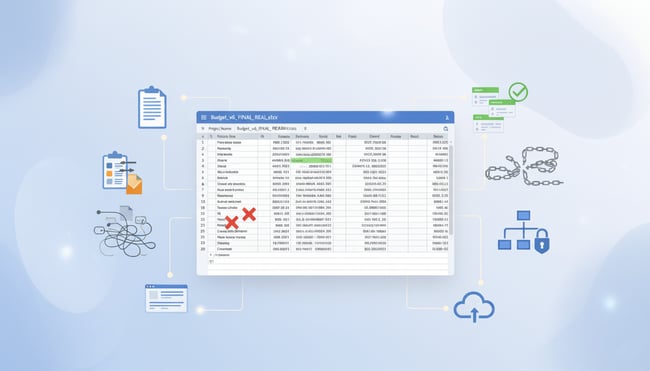
We’ve all seen files named “Budget_v6_FINAL_REAL.xlsx”. It’s a clear sign that version control has failed. Without a single source of truth, you risk overwriting data or relying on outdated numbers.
How to fix it:
Use Google Sheets for teams to manage edits collaboratively:
-
All changes are saved automatically in the version history.
-
You can comment, suggest, and restore any previous version.
-
Team members see updates in real time with no need to email attachments.
To make collaboration even easier, embed Google Sheets in Confluence. It allows everyone to see the latest data directly within a project page with no exporting, no duplicates, no confusion.
4. Overcomplicating Formulas
Complex formulas are another hidden time sink. When one cell depends on a chain of nested IFs or VLOOKUPs, even a small typo can break your entire model.
Common spreadsheet formula errors include:
-
Missing parentheses or quotation marks.
-
Incorrect cell references after sorting.
-
Using relative instead of absolute ranges.
How to fix it:
-
Simplify logic by breaking long formulas into helper columns.
-
Use named ranges and short comments to explain key steps.
-
Test formulas in a sandbox tab before applying them widely.
When formulas get too complex, centralize calculations in a master sheet and share only the results. For example, you can automate reports with Google Sheets across your dashboards.
5. Skipping Data Validation and Quality Checks
Small typos lead to big problems. A misplaced zero or wrong date format can throw off totals and forecasts. These spreadsheet data validation errors are easy to miss but costly to fix later.
How to fix it:
-
Use data validation to restrict what users can enter.
-
Apply conditional formatting to flag inconsistencies.
-
Create a summary tab that checks for missing data or outliers.
In Google Sheets, setting up these rules takes minutes, and once in place, they keep your spreadsheets clean and reliable. If you’re managing shared data, integrating Google Sheets with your collaboration tools can automatically surface validation alerts to your team.
6. Fixing Errors without Fixing the Process
The final mistake is not tracking where errors happen. If your team fixes the same problems month after month, it’s time to build a better process.
How to fix it:
-
Review error logs or audit trails to spot recurring issues.
-
Save clean versions as templates. Consistent formats prevent future mistakes. If you're starting from scratch, pre-built templates can help you avoid common structural issues.
-
Educate your team on spreadsheet best practices like version control, automation, and validation.
Once you know the patterns behind your spreadsheet mistakes, you can prevent them before they appear again.
Bringing It All Together: From Isolated Sheets to Connected Systems
Most spreadsheet errors don’t come from bad data. They come from disconnected workflows. When teams manage information across separate files, version confusion and manual edits become inevitable.
A better approach is to connect your spreadsheets to where work happens.
By embedding Google Sheets in Confluence or using integrations to link project dashboards, you turn static data into dynamic, reliable insights. That’s how you prevent spreadsheet mistakes before they cost you time.
Final Thought
Spreadsheet management isn’t solely about fixing errors. It’s about preventing them through structure, automation, and collaboration.
With Google Sheets best practices, you can keep data consistent, automate repetitive work, and ensure your reports are always accurate.
Want fewer spreadsheet errors and more reliable reports? Explore how Google Sheets for Confluence and Google Sheets for monday.com help you prevent mistakes and keep your data connected.
FAQ
-
What are the most common spreadsheet mistakes?
Disorganized data, broken formulas, and missing validation are among the top spreadsheet errors that slow teams down. -
How can I prevent spreadsheet mistakes in Google Sheets?
Plan structure, use data validation, and automate updates with Google Sheets integrations to keep data accurate. -
How do I fix formula errors in spreadsheets?
Simplify nested functions, use named ranges, and check your references before expanding calculations. -
Can I automate reports with Google Sheets?
Yes. You can build automated reports in Google Sheets that update live across dashboards or embed them directly in Confluence. -
What are spreadsheet best practices for teams?
Keep one live version, validate inputs, and document key formulas so everyone understands the data.