
The Problem with Disconnected Tools
Most teams work across several tools at once. Budgets and forecasts live in Google Sheets, documentation sits inside Confluence, and project workflows move through monday.com. Each platform supports a different part of the business. Problems arise when leadership or cross functional teams need a clear, unified view of what is happening right now.
Someone opens a Confluence page expecting accurate metrics. Someone else checks a Google Sheet that was updated yesterday. A project manager looks at monday.com and wonders why the numbers do not match the report. Hours disappear into exporting, copying, screenshotting and formatting. By the time the report is shared, it is already out of date.
A solid Google Sheets integration with collaboration tools like Confluence and monday.com is what resolves this recurring problem. When data flows cleanly between your documentation, your spreadsheets and your project boards, the result is a working environment where numbers stay current, updates travel automatically, teams focus on decisions, and the manual maintenance is no longer there.
This article explains the advantages of connecting Google Sheets to Confluence and monday.com, highlights the differences between manual and app based embedding, and provides examples of real teams and projects that benefit from an integrated setup.
Why Google Sheets Integration Matters for Your Team
Most organizations do not intentionally create data silos. They simply adopt the best tool for each job. Google Sheets is chosen because it is flexible, easy to share, and powerful enough to run models and forecasts. Confluence is adopted to become the central place for documentation, decision records, and knowledge sharing. monday.com comes in when teams need a clear view of tasks, owners, and progress.
The fragmentation becomes apparent when decisions need to be made quickly. Leadership wants a complete picture of a launch, a budget, or a roadmap. Data is indeed available but scattered across three different interfaces, each with its own timing and structure.
Without integration, teams fall back on manual workflows:
-
exporting and importing spreadsheets
-
pasting raw data into tables
-
updating screenshots before each meeting
These steps do not seem harmful on their own, but they have consequences. Reports lag behind reality, discrepancies appear between what people see in Sheets and what appears in Confluence or monday.com, and a lot of time is spent maintaining views rather than understanding them.
A good Google Sheets integration addresses these issues by giving teams a single source of truth that flows into multiple tools. Google Sheets can remain the analytical engine and storage layer, while Confluence and monday.com become trusted surfaces where that data shows up in context.
Google Sheets Integration: Manual vs Automated
Confluence and monday.com both support two ways of bringing Google Sheets data into their environments: a manual approach using the native embedding options available in each platform, and an automated approach through marketplace apps. Both methods allow teams to display live spreadsheet information where they work, but they differ significantly in setup effort, consistency and long-term maintenance.
The two approaches produce the same outcome at a high level, since both ultimately display live information coming from the same spreadsheet. Where they differ is in the amount of setup required, the ease of maintenance and how well they scale when a team starts embedding several Sheets across many pages or boards.
Manual embedding: control with more hands-on work
Manual embedding is the option built directly into Confluence and monday.com. Teams can add a Google Sheet to a Confluence page using the Iframe macro, or insert it into monday.com through the Embed Everything widget. These native features allow full control over what appears, how it is placed and how much space it occupies.
Full control sounds appealing, but it requires more hands-on work than teams often anticipate. This involves preparing the correct Google Sheets link, configuring the frame or widget and adjusting sizing until the content is readable. For Confluence, this means filling out several macro fields (e.g. height, width, border, title, etc.). For monday.com, it involves resizing the widget until the view fits the board layout.
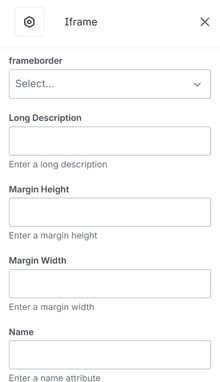
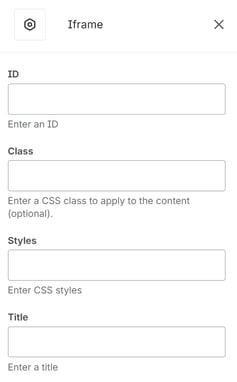
In both platforms, the result is a live view, but each instance must be configured separately. This means that if the same Sheet appears across multiple Confluence pages or monday.com dashboards, every embed requires its own setup.
Manual embedding is therefore workable when teams only need a few occasional embeds or when they have the time to manage every detail themselves.
Marketplace apps: automated setup and easier long-term maintenance
Marketplace apps offer an alternative that reduces configuration effort and keeps embeds consistent across many locations. Instead of adjusting macros or widgets individually, teams simply provide the Google Sheets link and let the app handle the technical steps.
These apps interpret the Sheet URL, extract the relevant parameters and take care of sizing, formatting and permission checks behind the scenes. In this way users do not have to fill out multiple fields or fine tune frame sizes. The embed loads in a ready-to-use format without requiring trial and error.
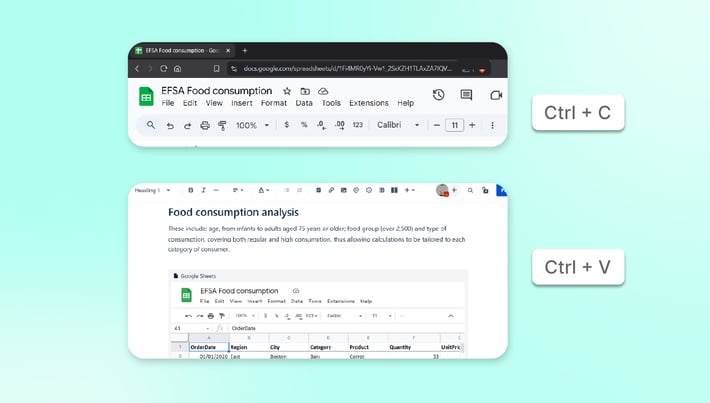
It is worth noting that this automation does not remove the possibility of adjusting parameters manually. Most apps allow teams to override defaults when they want more control over the final result. The difference is that the app handles these parameters on its own by default, which suits teams that prefer something ready-made and automatic, while still offering configuration options when needed.
The benefits of relying on a marketplace app become clearer as usage grows. When a Sheet appears in several Confluence spaces or across multiple monday.com boards, marketplace apps allow changes to propagate everywhere without touching each embed manually. Teams spend less time tracking down links, fixing layouts or diagnosing why a particular view is no longer aligned with the original spreadsheet.
For a deeper dive into how permissions and OAuth authentication work when embedding Google Sheets, check our Google Sheets Security guide.
Comparing the Two Methods
Both methods are valid and serve different needs. The main differences center on setup time, configuration, scalability, and technical skills.
| Manual Embedding | Automated (Marketplace Apps) | |
|---|---|---|
| Setup time | 5–10 minutes per embed | Under 1 minute per embed |
| Configuration | Requires filling URL, width, height, title fields manually | Automatic parameter extraction from Sheet URL |
| Scalability | Time multiplies with each embed | Consistent effort regardless of volume |
| Technical skill | Requires understanding of iframes, URLs, sizing | Minimal technical knowledge needed |
Manual embedding is recommended for teams with technical expertise, time to configure iframes or widgets and maintain multiple embeds across platforms. It gives full control and works well though mostly for smaller setups.
For most teams, marketplace apps provide a more practical solution that automates setup, synchronizes permissions and handles updates without ongoing maintenance. When multiple Sheets power key dashboards, product documentation or operational reviews across Confluence and monday.com, the time saved by avoiding repeated manual configuration quickly becomes significant.
So which approach should you choose? The answer depends less on abstract preferences and more on how your team actually works. To illustrate this, let's look at how five different departments solved their specific data integration challenges.
Google Sheets Dashboard: Real-World Applications by Team
Understanding the tradeoffs between manual and app based embedding is only part of the picture. The real impact of integration emerges when you consider how different teams depend on Google Sheets to run their projects, make decisions and communicate progress. The examples below show how these connections play out in practice.
Finance and FP&A: From Manual Updates to Live Forecasting
Finance teams typically manage 15–20 active budget models feeding into quarterly board presentations and management reviews in Confluence. Without integration, analysts spend 3–4 hours weekly exporting forecasts, formatting templates, and updating screenshots which translates into over 150 hours annually on manual data transfer rather than analysis.
With integration, the revenue forecast's "Executive Summary" tab embeds directly into Confluence leadership review pages. Department budget tracking and consolidated dashboards embed in the "Financial Planning" space. When analysts update assumptions in the Google Sheet, embedded views in Confluence update automatically.
Results: Weekly maintenance drops from 3–4 hours to 30 minutes. Leadership consistently sees current data. When sales reports a major deal, the embedded forecast reflects new numbers without manual intervention.
Project Management: Coordinating Complex Launches
A software company runs 8–12 concurrent product launches annually, each involving 40–60 tasks across multiple teams. Project managers track execution in monday.com while budgets, capacity plans, and risk registers live in Google Sheets. Without integration, creating unified launch dashboards requires checking monday.com, consulting multiple Sheets, then exporting and formatting everything twice weekly. This consumes 6–8 hours weekly per project manager.
With integration, budget tracking and resource allocation models remain in Sheets where formulas drive calculations. These Sheets embed directly into monday.com boards, so when finance updates cost projections or capacity plans change in Sheets, the board reflects the new values automatically. The Confluence launch page embeds budget dashboards, resource allocation charts, and risk registers from Sheets.
Results: Weekly update preparation falls from 6–8 hours to under 1 hour. Steering meetings shorten from 90 to 45 minutes as everyone arrives informed. Budget overrun alerts surface three weeks earlier than through manual reporting. The PMO scales from 8 to 15 concurrent launches without adding headcount.
Product and UX: Data-Driven Documentation
Product teams ship features biweekly and maintain documentation in Confluence while tracking metrics like NPS and adoption rates in Google Sheets. Product requirement documents show screenshots of metrics from when the document was written. After six months, those outdated numbers still appear to new team members. The UX researcher spends 4–5 hours monthly creating static visualizations for Confluence, knowing they'll be outdated within weeks.
With integration, each feature's Confluence page includes an embedded Google Sheets dashboard showing adoption rate, active users, and satisfaction scores. The product team's prioritization scoring model embeds in the roadmap page. Research dashboards showing demographic breakdowns and satisfaction trends embed into summary pages. As the UX researcher updates metrics in Sheets, all embedded views in Confluence refresh automatically.
Results: Product pages show current metrics instead of point-in-time snapshots. Product managers reference user research three times more frequently because data is accessible in context. The UX researcher reclaims 4–5 hours monthly, redirecting time to additional interviews and deeper analysis.
Operations and HR: Workforce Planning at Scale
A rapidly growing startup scales from 80 to 200 employees in 18 months. HR manages headcount planning, hiring pipeline projections, and organizational design models in Google Sheets while documentation lives in Confluence. When leadership asks "what's the cash impact of accelerating engineering hiring?", answering takes 3 hours of updating models and formatting for Confluence. Monthly board reporting requires 4–6 hours manually transferring data from Sheets to documentation.
With integration, HR creates a "Workforce Planning" space in Confluence with embedded Sheets dashboards showing current headcount vs. plan, cash burn projections, and hiring velocity trends. When HR updates hiring assumptions or actual data in the Google Sheet, embedded dashboards in Confluence refresh automatically. Leadership can also view these same workforce planning Sheets embedded in monday.com boards for project context.
Results: Ad-hoc headcount questions drop by 80%. Scenario analysis drops from 3 hours to 15 minutes. HR updates the model in Sheets once and all embedded views update. As the company grows to 500 employees, the same HR team handles increased complexity because integration eliminated manual consolidation.
Marketing: Campaign Performance Without the Busywork
A B2B marketing team runs 6–8 concurrent campaigns with performance data in Google Sheets pulling from ad platforms and CRM exports. The marketing ops manager maintains a master "Campaign Performance Dashboard" requiring weekly exports of 8–10 charts pasted into Confluence as images, monthly QBR updates, and quarterly retrospective documents. Total time: 5–6 hours weekly maintaining documentation.
With integration, marketing creates a single performance Sheet with clean summary tabs for embedding: current quarter performance, channel comparison, and historical benchmarks. These tabs embed into the QBR page in Confluence and into relevant monday.com campaign boards. As campaigns run and marketing updates data in Sheets, all embedded views show current performance without manual work.
Results: Weekly maintenance drops from 5–6 hours to 45 minutes. Leadership sees campaign performance as of yesterday, not whenever someone last updated. Campaign retrospectives from 18 months ago still show correct data because they're linked to source Sheets. Marketing leadership meeting prep drops from 2 hours to 30 minutes.
Want to avoid common pitfalls? Read our guide on 6 Common Spreadsheet Mistakes and How to Fix Them.
Common Patterns Across Successful Integrations
While each team faced unique challenges, their integration journeys share a consistent structure worth examining.
Before integration: Data lives in Google Sheets for analytical power. Work happens in Confluence and monday.com for documentation and task tracking. Someone manually bridges the gap through exports, formatting, screenshots, and pasting, consuming 3–8 hours weekly. Documentation lags behind reality by days or weeks. Keeping multiple views consistent requires active maintenance.
After integration: Sheets remain the source of truth and analytical engine. Live views appear in context within Confluence pages and monday.com dashboards. Updates propagate automatically without manual intervention. Documentation reflects reality in near real-time. Time previously spent on manual updates redirects to analysis and decision-making.
Quantifiable impact: 60–80% reduction in data maintenance work. Decision speed improves by hours to days because current data is always accessible. Version control issues and outdated information disappear. Teams handle more projects and reporting without additional headcount. Stakeholders trust that visible data reflects current reality.
Ready to build similar workflows for your team? Start with our 10 ready-to-use Google Sheets templates for monday.com covering the most common use cases across finance, project management, marketing, and operations.
How to Choose the Right Google Sheets Integration Approach
These real-world scenarios show what integration makes possible. The practical question becomes: which approach fits your team's actual needs? A simple way to decide is to look at three dimensions that tend to shape the experience in practice.
Evaluate Your Team's Volume and Scale
If you only bring a single spreadsheet into a Confluence page from time to time, manual embedding may be perfectly adequate. The configuration effort is limited and maintenance is easy to manage. As soon as your organization embeds several Sheets across multiple spaces, pages or boards, the cumulative time saved through automatic configuration becomes noticeable.
Consider Technical Capacity
If a small, technical team owns most pages and boards and is comfortable dealing with link parameters, macros or widget adjustments, manual methods can work reliably. If authors are distributed across the organization and many are non technical, a marketplace app that hides the complexity helps avoid misconfigurations and keeps everything consistent.
Calculate Total Cost of Ownership
If the information is used for recurring reviews, budgeting cycles, or decisions that require accuracy, a broken link or misaligned view can introduce friction at the wrong moment. In those cases, an app that centralizes updates and ensures consistency across all embeds acts as a quiet safety net.
In reality, many organizations end up using both methods. Manual embedding often serves early experiments or one-off references. As usage grows and more teams rely on spreadsheet data, marketplace apps take over the repetitive elements.
Building a Friction-Free Workflow
The choice between manual and automated approaches matters less than the decision to integrate in the first place. Regardless of implementation method, teams work better when the information that guides their decisions appears directly in the tools where those decisions are made. Google Sheets remains the analytical backbone for many organizations, while Confluence and monday.com provide the environments where work is planned, documented and communicated. Connecting them allows each tool to do what it does best, without creating extra work for the people using them.
When data moves smoothly from Sheets into Confluence and monday.com, the changes compound over time. Teams stop worrying about mismatched numbers and outdated screenshots. Documentation stays linked to its source, dashboards remain current without manual refreshes, and planning tools reflect the latest information. Stakeholders trust what they see because the numbers update automatically when the source changes. This shift transforms how teams operate. Reviews become smoother as everyone arrives with current information. Cross-functional alignment improves when finance, product, and operations all reference the same live data. Decision-making speeds up because nobody waits for the next manual update cycle. For many teams, this operational confidence is worth far more than the hours saved on maintenance.
If your organization relies on Google Sheets for analysis but depends on Confluence and monday.com to move work forward, integration is worth the investment. Start with your most critical dashboards: the ones leadership checks weekly or the reports that drive key decisions. As teams experience the difference between static exports and live data, adoption spreads naturally.
Want to explore how smooth integration works in practice? Presago’s Google Sheets for Confluence (Workspace Connector) and Google Sheets Embedder for monday.com plugins make it simple to embed live spreadsheets into your workflow. Both are part of Presago's suite of apps for Atlassian and monday.com, designed to simplify complex workflows for global teams. Whether you're just getting started or looking to scale across your organization, we're here to help you build a setup that works for your team.
FAQ: Google Sheets Integration with Collaboration Tool
1. What is Google Sheets integration and why does it matter?
Google Sheets integration connects your spreadsheets with collaboration tools like Confluence and monday.com, allowing data to flow automatically between platforms. This eliminates the need to export data, create screenshots, or manually recreate spreadsheet information in tables, therefore keeping information current across tools, and giving teams a single source of truth for reports, dashboards, and documentation.
For organizations that rely on Google Sheets for analysis while using Confluence for documentation or monday.com for project management, integration transforms scattered data into a unified, always-current view that supports faster decisions and reduces errors.
2. How do I embed Google Sheets in Confluence?
You can integrate Google Sheets with Confluence using two main approaches:
Manual embedding: Use Confluence's Iframe macro to embed a Google Sheet. This requires generating a publish URL from Google Sheets, extracting the embed link, and configuring macro fields like URL, width, height, and title. Each embed takes 5–10 minutes to set up and must be configured individually.
Automated embedding with marketplace apps: Install a Google Sheets integration app from the Atlassian Marketplace. These apps automate the technical configuration allowing you to simply paste your Sheet URL while the app handles sizing, permissions, and formatting automatically. Setup takes under a minute per embed, and changes can propagate across multiple embeds from a central dashboard.
Manual methods work for occasional one-off embeds. For teams managing multiple Sheets across Confluence spaces or needing consistent maintenance, marketplace apps provide faster setup and easier long-term management.
3. What's the difference between manual and automated Google Sheets embedding?
The main differences center on setup time, maintenance effort, and scalability.
Manual embedding requires technical knowledge and ongoing attention to maintain multiple embeds. Each Sheet embedded in multiple locations requires separate configuration.
Automated solutions handle technical details automatically. They extract parameters from the Sheet URL, determine optimal display dimensions, and manage permissions. For teams embedding the same Sheet across multiple pages or managing many embeds, automation saves significant time and reduces configuration errors.
4. How much time does automated Google Sheets integration save?
Time savings scale with the number of embeds you manage:
Per embed: Manual setup takes 5–10 minutes including URL generation, parameter configuration, and sizing adjustments. Automated setup takes under 1 minute.
At scale:
-
5 embeds: Manual = 25–50 minutes | Automated = 5 minutes
-
20 embeds: Manual = 100–200 minutes | Automated = 20 minutes
-
50 embeds: Manual = 250–500 minutes | Automated = 50 minutes
5. How do marketplace apps handle Google Sheets permissions?
Quality marketplace apps maintain Google Sheets' original permission model while simplifying management.
Permission inheritance: When you embed a Sheet, the app preserves Google's access controls. Users who can view the Sheet in Google can see it embedded in Confluence. Users without access see an appropriate message or prompt to request access, rather than exposing restricted data.
Automatic synchronization: If you change Sheet permissions in Google (adding or removing users), the embedded view reflects those changes automatically. You don't need to reconfigure embeds when team access changes.
Visibility without exposure: Apps allow you to embed restricted Sheets in public Confluence spaces. The Sheet remains protected as only authorized users see the content even though the page itself is widely accessible. This provides defense-in-depth for sensitive data.
6. Can I embed specific tabs or ranges from a Google Sheet?
Yes, both manual and automated methods support selective embedding:
With manual embedding: You must modify the Google Sheets publish URL to include specific parameters. For individual tabs, add the gid parameter to the URL. For cell ranges, use the range parameter in the format range=A1:F20. This requires understanding URL syntax and manually editing parameters each time you want to change what displays.
With marketplace apps: Select which tab or range to display using dropdown menus or simple text fields. Apps handle URL parameter construction automatically. If you need to adjust what displays later, you change the setting rather than reconstructing URLs.
This capability is particularly valuable when your working Sheet contains multiple tabs or includes scratch calculations and notes you don't want to display. You can maintain a comprehensive analytical workbook while embedding only the polished dashboard or summary view in your documentation.
For Google Sheets dashboards that aggregate data from multiple sources, selective embedding lets you show executives a clean summary view while analysts work with the full detailed model in the background.
7. What happens when I update data in my Google Sheet?
Changes to your source Google Sheet appear in embedded views within seconds to minutes, depending on your integration method. With marketplace apps, updates typically propagate automatically without any action required. Manual embeds using iframe may require a page refresh in some cases.
Note that monday.com may cache embedded content briefly for performance. If you don't see immediate updates, wait 1–2 minutes or refresh your browser.