
Your team manages work in Jira, but the data you need to make decisions lives in Power BI dashboards connected to finance systems, CRMs, marketing platforms, and monitoring tools. Switching between Jira and Power BI breaks your workflow and makes it harder to connect project work with business metrics.
Embedding Power BI dashboards in Jira creates a unified workspace where project management and business intelligence coexist. This guide walks you through five dashboard examples that teams commonly embed in Jira: financial performance, marketing campaigns, sales pipelines, customer support metrics, and IT infrastructure. Each template shows what data to visualize and how to structure the dashboard.
If you need detailed integration steps or want to understand the full scope of Power BI integrations, check out our Power BI Integration Guide for Jira.
Why Use Power BI Dashboards with Jira?
Embedding Power BI dashboards in Jira improves how teams access business intelligence in three ways.
First, it eliminates context switching. Instead of opening separate tabs for project status and business metrics, your team sees both in one place. Project managers can check sprint progress and budget burn rate on the same screen.
Second, it connects project work with business outcomes. When financial data, marketing metrics, or sales numbers appear alongside project tasks, teams make better decisions about priorities and resource allocation. The relationship between project activities and business results becomes visible.
Third, it creates a single source of truth for stakeholders. Executives and team leads can review project health and business performance without navigating multiple systems. All relevant data appears in the workspace your team already uses daily.
The connection between Power BI and Jira requires an integration app. Several options are available in the Atlassian Marketplace, including Presago's Power BI for Jira.
5 Power BI Dashboard Examples to Embed in Jira
These dashboard examples show what teams typically embed in Jira when they need business intelligence alongside project management. Each template includes the metrics to track, visual types to use, and data sources to connect.
1. Financial Performance Dashboard
Finance teams that manage budgets and forecasts in external systems embed financial dashboards in Jira to give project managers visibility into spending and budget health.
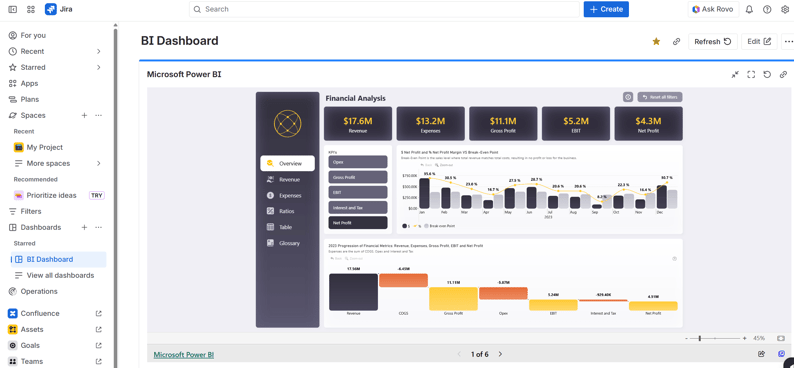
Use case: Track revenue, expenses, and profit margins alongside project work. Finance teams use this dashboard to show project managers their budget status, burn rate, and remaining funds without requiring separate financial system access.
Key metrics displayed:
- Monthly revenue and expenses by department or project
- Profit margin percentage and trend over time
- Cash flow status showing money in versus money out
- Budget utilization comparing spent versus allocated amounts
Visuals used:
- Line chart showing revenue and expense trends over the past 12 months
- Card visuals displaying current month revenue, expenses, and profit
- Waterfall chart illustrating how revenue converts to profit after expenses
- Bar chart comparing budget allocated versus actual spending by department
Data sources:
- QuickBooks, Xero, or other accounting software
- SAP, Oracle, or ERP systems
- Excel spreadsheets with financial data
- SQL databases containing finance records
Why embed in Jira: Project managers need budget visibility while planning sprints and assigning resources. Finance teams want project leads to see spending patterns without granting full accounting system access.
2. Marketing Campaign Performance Dashboard
Marketing teams running campaigns across multiple platforms embed performance dashboards in Jira where they manage campaign projects and creative workflows.
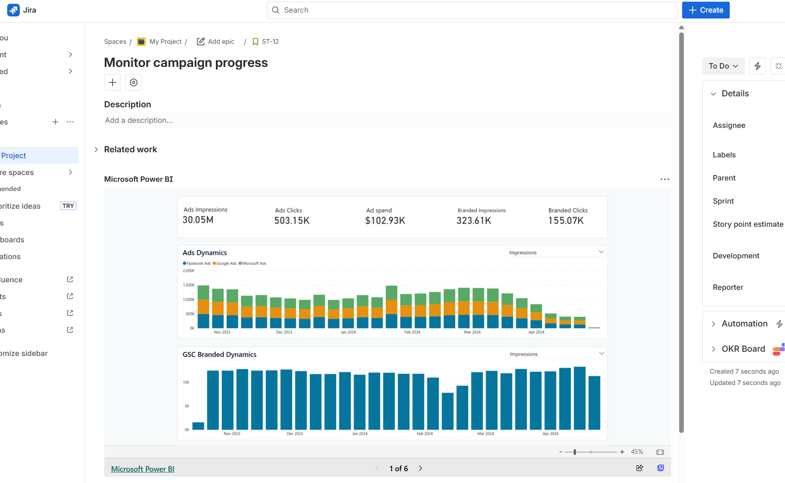
Use case: Monitor campaign ROI, lead generation, and conversion rates while managing marketing projects. Marketing managers use this dashboard to connect campaign metrics with project timelines and resource allocation decisions.
Key metrics displayed:
- Campaign ROI calculated as revenue generated divided by campaign spend
- Lead generation numbers showing new leads by channel and campaign
- Conversion rates from lead to customer across different campaigns
- Website traffic broken down by source and campaign attribution
Visuals used:
- Funnel chart showing the customer journey from awareness to purchase
- Line chart tracking website traffic and conversions over time
- Bar chart comparing campaign performance by channel
- Card visuals for total leads, conversion rate, and cost per acquisition
Data sources:
- Google Analytics for website traffic and conversion data
- HubSpot Marketing Hub or Marketo for marketing automation metrics
- LinkedIn Ads, Google Ads, or Facebook Ads Manager for ad performance
- Mailchimp or other email marketing platforms for campaign engagement
Why embed in Jira: Marketing teams manage campaigns as Jira projects with tasks for content creation, ad setup, and launch activities. Embedding campaign performance metrics lets them see results alongside project timelines.
3. Sales Pipeline and Revenue Dashboard
Sales operations teams embed CRM dashboards in Jira to give visibility into pipeline health, deal progress, and revenue forecasts for teams managing sales-related projects.
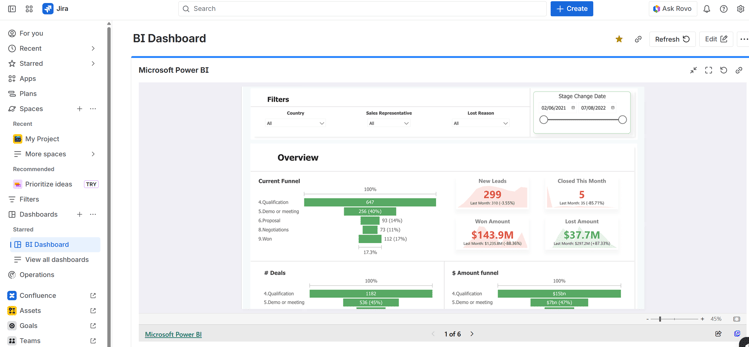
Use case: Track pipeline value, win rates, and forecast accuracy while managing sales enablement projects, territory planning, or product launches. Sales leaders use this dashboard to connect revenue goals with project deliverables.
Key metrics displayed:
- Total pipeline value segmented by stage and sales rep
- Win rate percentage showing closed-won versus closed-lost deals
- Revenue forecast comparing projected versus actual revenue
- Average deal size and sales cycle length by product or territory
Visuals used:
- Waterfall chart showing pipeline changes as deals move through stages
- Line chart displaying monthly revenue actual versus forecast
- Donut chart breaking down pipeline by stage
- Table listing top deals with value, stage, and expected close date
Data sources:
- Salesforce, HubSpot CRM, or Microsoft Dynamics 365
- SQL databases with sales data
- Excel spreadsheets containing forecast models
- Custom data warehouses aggregating sales information
Why embed in Jira: Sales operations teams use Jira to manage enablement programs, territory planning projects, and sales tool implementations. Embedding CRM metrics shows how these projects impact pipeline and revenue.
4. Customer Support Metrics Dashboard
Support operations teams embed customer satisfaction and ticket volume dashboards in Jira where they manage support process improvements and tool implementations.
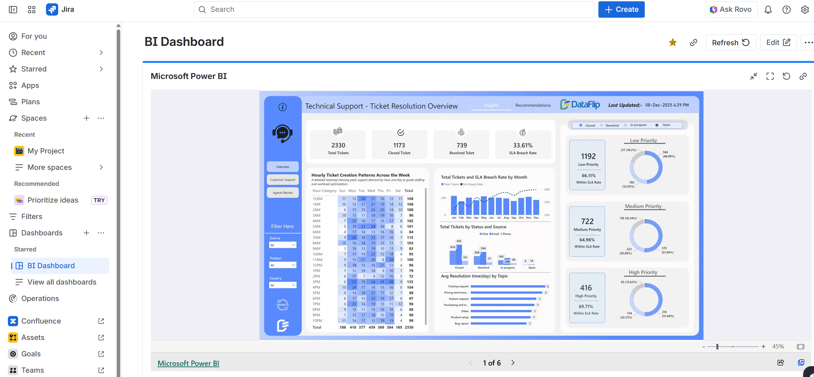
Use case: Monitor customer satisfaction scores, ticket resolution times, and support agent performance while managing projects to improve support processes. Support managers use this dashboard to measure the impact of support tool changes and process updates.
Key metrics displayed:
- Customer satisfaction (CSAT) scores aggregated by time period and product
- Average ticket resolution time showing how quickly issues get resolved
- Ticket volume trends comparing new tickets versus resolved tickets
- Customer health scores indicating which accounts need attention
Visuals used:
- Line chart showing CSAT score trends over the past six months
- Clustered column chart comparing ticket volume created versus resolved
- Gauge chart displaying current CSAT against target score
- Table showing top support agents by tickets resolved and average CSAT
Data sources:
- Zendesk, Freshdesk, or Intercom for support ticket data
- Customer feedback platforms like Delighted or SurveyMonkey
- SQL databases containing customer interaction records
- Data warehouses aggregating support metrics across systems
Why embed in Jira: Support teams use Jira to manage projects like support tool migrations, process documentation, and quality improvement initiatives. Embedding support metrics shows whether these projects improve customer satisfaction and resolution times.
5. IT Infrastructure and Security Dashboard
IT operations teams embed infrastructure monitoring and security dashboards in Jira where they manage incident response, system upgrades, and security projects.
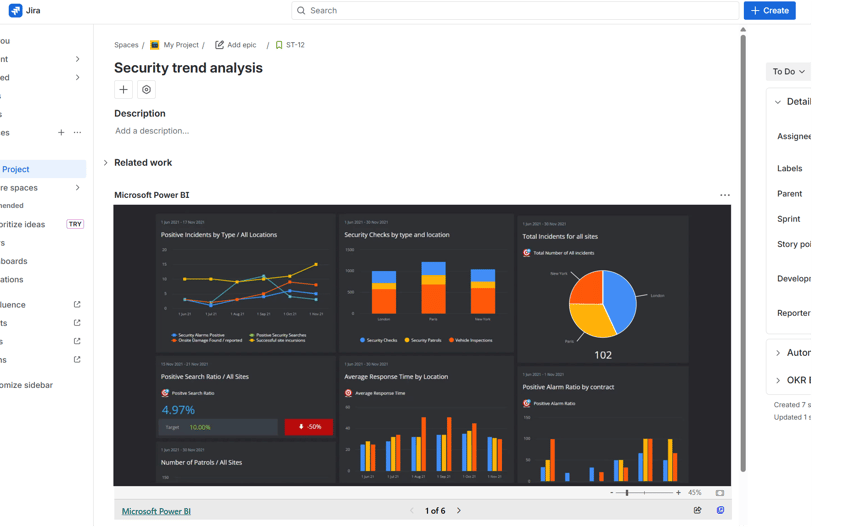
Use case: Track server uptime, security incidents, and system performance while managing IT projects. DevOps teams use this dashboard to see how infrastructure changes impact system health and security posture.
Key metrics displayed:
- System uptime percentage for critical services and applications
- Security incident count by severity level and time period
- Server performance metrics including CPU usage, memory, and disk space
- Cloud infrastructure costs by service and resource type
Visuals used:
- Line chart showing uptime trends for key systems over the past 30 days
- Card visuals displaying current security incident count and severity distribution
- Bar chart comparing infrastructure costs by service or environment
- Gauge chart showing current system health against SLA targets
Data sources:
- Azure Monitor, AWS CloudWatch, or Google Cloud Operations for cloud infrastructure
- Datadog, New Relic, or Splunk for application performance monitoring
- Security information and event management (SIEM) tools for security data
- Cost management tools for cloud spending data
Why embed in Jira: IT teams manage infrastructure projects, security initiatives, and system upgrades in Jira. Embedding monitoring dashboards shows real-time system health alongside project work, helping teams respond faster to incidents and measure the impact of infrastructure changes.
How to Embed Power BI Dashboards in Jira
Embedding Power BI dashboards in Jira follows a consistent process regardless of which dashboard type you choose. These steps work for any of the five examples above.
Step 1: Create Your Dashboard in Power BI
Build your dashboard in Power BI Desktop using data from your source systems. Connect to your finance software, CRM, marketing platforms, or monitoring tools. Create the visuals and metrics that matter for your team.
Publish the completed dashboard to Power BI Service. This makes it available for embedding and sets up the sharing permissions you need.
Step 2: Get the Embed URL from Power BI
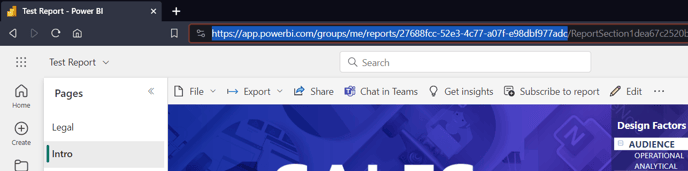
To retrieve the privately shared Power BI dashboard's URL, just access the report via the Power BI webapp and copy the URL from your browser's address bar.
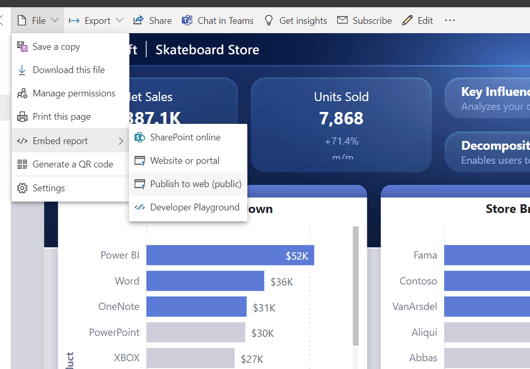
If you want to publish your report and embed it without secure authentication, go to File > Embed report > Publish to web, then copy the displayed URL.
Step 3: Install a Power BI Integration App in Jira
Go to the Atlassian Marketplace and install an app that embeds Power BI dashboards in Jira. This step is necessary since Power BI cannot be embedded in Jira without a third-party app. These apps handle authentication and rendering Power BI content within Jira pages and dashboards.
For a detailed walkthrough, see our 5-minute setup guide for embedding Power BI in Jira dashboards.
Step 4: Add the Dashboard to Your Jira Page
Navigate to the Jira page or dashboard where you want the Power BI dashboard to appear. Add the Power BI widget or macro provided by your integration app.
Paste your Power BI embed URL into the widget configuration. Adjust the size and layout to fit your Jira page design.
Step 5: Set Permissions and Test
Configure who can view the embedded dashboard. Most integration apps respect both Jira permissions and Power BI sharing settings.
Test the dashboard with different user accounts to ensure the right people see the right data. Verify that interactions like filtering and drill-down work correctly within the Jira interface.
Time estimate: Embedding your first Power BI dashboard takes 5 to 10 minutes, including time to generate the embed URL and configure permissions. Subsequent dashboards take about 2 minutes once you understand the process.
Good dashboard design makes data easier to understand and act on. Apply these practices to any of the five templates.
Focus on key metrics
Limit each dashboard page to five to seven key metrics. More than that creates cognitive overload. If you have additional metrics to track, create a second page or use drill-through views.
Use color strategically
Stick to a consistent color scheme. Use your organization's brand colors where appropriate. Reserve red for problems that need immediate attention, yellow for warnings, and green for positive indicators. Avoid using color as the only way to convey information since some users have color vision deficiencies.
Place important information at the top
Users look at the top of the screen first. Position your most critical KPIs in the upper portion of the dashboard. Secondary details and supporting data can appear lower on the page.
Design for different devices
Test how your dashboard looks on tablets and phones, not just desktop monitors. Power BI supports responsive layouts. Check that text remains readable and visuals don't become too small on smaller screens.
Enable interactivity
Configure cross-filtering so clicking on one visual filters the others on the same page. For example, clicking a specific campaign in a list should filter all charts to show only that campaign's data. This helps users explore their data without building complex filter expressions.
Provide context for numbers
Show comparisons whenever possible. Display this month's sales alongside last month's sales, or actual performance against target. Numbers without context don't tell users whether performance is good or bad.
Avoid unnecessary complexity
Stick to standard chart types that users recognize: bar charts, line charts, and tables. Specialized visuals like radar charts or tree diagrams can be harder to interpret. Use them only when the standard options don't work for your data.
Start Embedding Power BI Dashboards in Jira
These five dashboard examples show how teams bring business intelligence into their project management workspace. Whether you need financial visibility, marketing metrics, sales pipeline tracking, customer support data, or IT infrastructure monitoring, the pattern remains the same: build dashboards in Power BI, publish to Power BI Service, and embed in Jira where your team works.
The templates in this guide provide a starting point. Adapt them to match the specific metrics and data sources your team relies on for decision-making.
Ready to embed Power BI dashboards in your Jira instance? Explore integration options in the Atlassian Marketplace. Presago offers Power BI integrations for Jira and Power BI integrations for Confluence that simplify embedding and keep dashboards in sync.
Note: Teams using both Jira and Confluence can embed the same Power BI dashboards across both platforms, creating a unified view of business intelligence throughout your Atlassian workspace.
FAQ
Can I embed multiple Power BI dashboards in the same Jira project?
Yes, though it depends on the integration app you choose. Some marketplace apps may allow multiple dashboard instances per page, depending on how they're configured. Presago's Power BI app for Jira supports this feature on Jira issues and dashboards, and even lets you embed multiple reports across different Jira dashboards as needed.
Do I need admin permissions to install a Power BI integration app in Jira?
Yes. Installing apps from the Atlassian Marketplace requires specific Jira permissions. Once the app is installed, administrators can configure which users or groups have access to view embedded Power BI dashboards based on Jira page permissions and Power BI sharing settings.
What happens if I uninstall the integration app?
If you uninstall the integration app, embedded Power BI dashboards will stop displaying in Jira. The app acts as the rendering layer between Jira and Power BI Service. However, your Power BI dashboards and data remain completely intact in Power BI Service and can be accessed normally outside of Jira.
Do integration apps store my Power BI data?
No. Trusted integration apps (including Presago's) function as a secure bridge between Jira and Power BI Service. They use client-side authentication and do not store, cache, or proxy your Power BI data. All data remains in Power BI Service and is accessed in real-time when users view the embedded dashboard.
Can I customize the size and appearance of embedded dashboards in Jira?
This depends on the integration app you choose. Some apps offer basic embedding with fixed layouts, while others provide extensive customization options. Presago's Power BI app for Jira offers useful display options like filters or view toggles, allowing users to personalize what they see without needing to open Power BI. You can configure dashboard dimensions, responsive layouts, and display settings to match your Jira page design.
Will embedded dashboards slow down my Jira performance?
No. Embedded Power BI dashboards load within iframes and operate independently from Jira's core functionality. The dashboard content is served directly from Power BI Service, so it does not consume Jira server resources or affect page load times for other Jira content.
How often does embedded dashboard data refresh in Jira?
Dashboard data refreshes based on your Power BI dataset refresh schedule, not the Jira embedding. Configure refresh frequency in Power BI Service, typically ranging from hourly to daily depending on your data source and Power BI capacity. The embedded view in Jira displays the latest available data automatically.
Do viewers need Power BI licenses to see embedded dashboards in Jira?
To view a embedded private dashboard, users must have a valid paid Power BI license and appropriate access permissions in Power BI Service. The only way to share without a license is through Power BI's "Publish to web" option, which makes the report publicly accessible. This approach is strongly discouraged for sensitive or strategic data as it bypasses all access controls.
Can I embed the same Power BI dashboard in both Jira and Confluence?
Yes. The same Power BI embed URL works across both platforms. Teams using both Jira and Confluence can embed identical dashboards in both tools, creating a unified view of business intelligence throughout your Atlassian workspace. This is particularly useful when project teams work in Jira while documentation lives in Confluence.
Related Resources:
- The Complete 2026 Guide to Power BI Integrations with Atlassian and monday.com
- Power BI Jira Connector: 5-Minute Setup Guide
- Power BI Integration for Confluence