
When teams embed Google Sheets into Atlassian Confluence or monday.com boards, security often becomes an afterthought, until sensitive data appears where it shouldn't. A finance team shares budget forecasts. A product manager embeds a roadmap. An HR lead adds hiring metrics. Each scenario requires careful permission management to protect information while keeping collaboration smooth.
This guide shows you how to configure Google Sheets permissions correctly when embedding in Confluence and monday.com, so your data stays secure while remaining accessible to the right people.
How Permission Inheritance Works with Embedded Sheets
When you embed a Google Sheet, you're not creating a copy or a separate version. The embedded sheet pulls directly from Google Drive, which means it follows the same permission rules as the original file.
If someone has Editor access in Google Drive, they can edit the embedded sheet. If they have Viewer access, they can only see it. If they have no access at all, the embedded sheet won't load for them.
This creates a simple security model: manage permissions once in Google Drive, and those settings apply everywhere the sheet appears. Change someone's access level in Drive, and it updates immediately in all embedded locations.
However, this also means that loose Google Drive permissions automatically extend to embedded versions. If you set a sheet to "Anyone with the link" in Drive, anyone who can view the Confluence page or monday.com board will be able to access that data, even if they're not part of your organization.
The "Publish to Web" Security Problem
Some teams use Google Sheets' "Publish to web" feature when embedding because it bypasses authentication. This means that you don't need to manage who has access, and users don't need to sign in with their Google accounts. The published sheet just works for everyone.
This convenience, however, creates serious security risks. Publishing to web makes your sheet publicly accessible to anyone with the embed code. The published version remains accessible even after you restrict permissions on the original sheet. Published sheets are also indexable by search engines, potentially exposing confidential information in search results.
There's no audit trail for published sheets. You can't see who viewed the data or when. Changes appear immediately in the public version, so accidental data entry becomes publicly visible before you can retract it.
For secure embedding, use tools that require authentication. Apps like Presago's Google Sheets integrations for Confluence and monday.com preserve Google Drive's permission model, ensuring only authorized users can view embedded content.
Setting Up Secure Embedding in Confluence
When embedding Google Sheets in Confluence, you have several options that affect security differently. The most secure approach uses apps that authenticate users and respect Google Drive permissions rather than bypassing them.
Here's how to configure secure embedding:
-
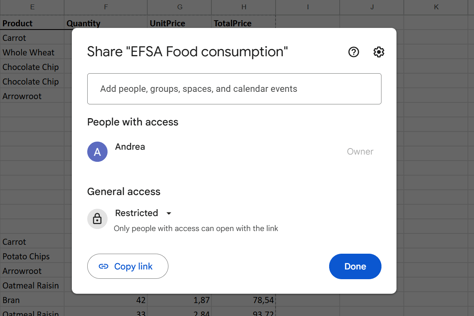
Set Google Drive permissions before embedding. Open the sheet in Google Drive, click Share, and set access to "Restricted." This ensures only people you explicitly grant access can view the sheet. Avoid "Anyone with the link" unless the data is genuinely public.
-
Add specific users or groups. Enter email addresses for team members who need access, or use Google Groups for department-wide sharing. Choose the appropriate permission level: Viewer (read-only), Commenter (can add notes), or Editor (can modify).
-
Choose an embedding method that requires authentication. Native Confluence embedding options have limitations. The iframe macro can embed published sheets, but this bypasses Google's security. Third-party apps from the Atlassian Marketplace offer authenticated embedding that preserves Drive permissions. Look for apps that use OAuth 2.0 and explicitly state they don't store your data. For a detailed comparison of integration methods, see our guide on connecting Google Sheets with Confluence and monday.com.
-
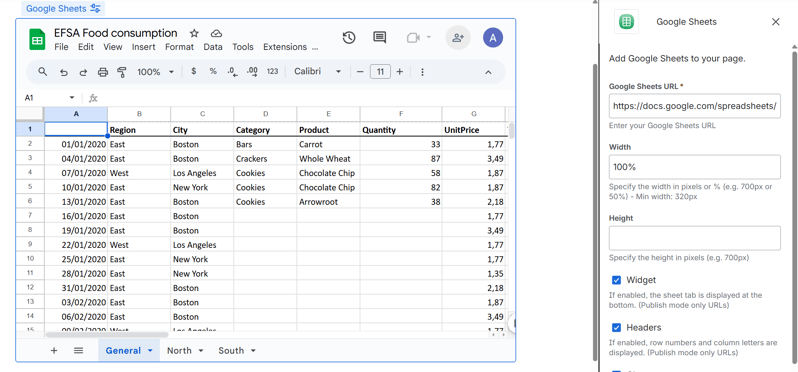
Paste the sheet URL. Copy the URL from Google Drive (not a published link) and use it with your chosen embedding method. Users will authenticate with their Google accounts when they first view the sheet.
-
Configure display options. Most embedding solutions let you control which sheet tabs are visible, whether headers display, and if navigation elements appear. Show only what your team needs to reduce cognitive load and potential confusion.
-
Test with different user accounts. Before sharing the page widely, verify that users with different permission levels see appropriate access. Someone with Viewer rights should only be able to view, not edit. Someone without access should see a clear permission denied message.
For sensitive data like financial forecasts or personnel information, consider additional protections. Google Workspace's context-aware access policies can require specific device types or locations before granting access. Enable audit logging to monitor who accesses sensitive sheets and when. Regular permission audits help catch access that's no longer needed.
Setting Up Secure Embedding in monday.com
monday.com boards can display embedded Google Sheets through various integration methods, each with different security implications. The key is choosing an approach that maintains Google Drive's permission model rather than creating public access.
To embed securely in monday.com:
-
Configure Google Drive permissions first. Set the sheet to Restricted access in Google Drive before embedding. Add monday.com users to the sheet's access list using their email addresses. This creates a baseline of who can access the data.
-
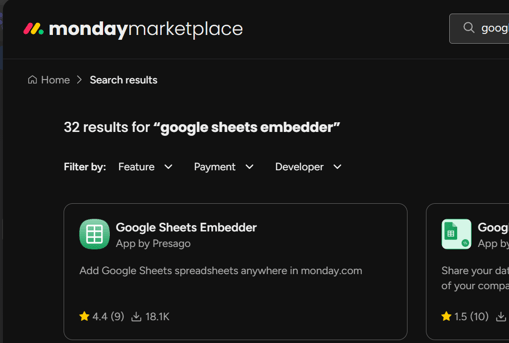
Evaluate embedding options. monday.com’s marketplace offers several Google Sheets integrations. When comparing options, check each app's Security & Compliance profile in the marketplace listing. Look for solutions that answer "Yes" to the maximum number of security requirements: OAuth 2.0 authentication, no end-user data storage, SOC 2 compliance, data encryption in transit and at rest, and regular security audits. Apps with detailed security documentation and transparent compliance policy demonstrate stronger commitment to data protection.
-
Install and configure your chosen integration. Follow the setup process, which typically involves connecting your Google account and authorizing specific permissions. The integration should request only the access it needs (viewing or editing sheets) rather than broad account access.
-
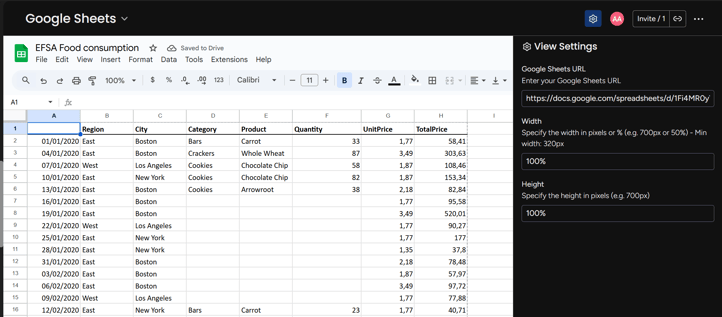
Add the sheet to your board. Use the integration's widget or embedding feature to add your sheet. Paste the Google Drive URL (not a published link). Users should authenticate with their Google accounts when they first view the embedded sheet.
-
Align board and sheet permissions. If a monday.com board is private to specific team members, ensure those same people have access to the embedded sheet in Google Drive. Mismatched permissions create confusion: users see the board but can't access the sheet, or vice versa.
-
Configure what's visible. Most integrations let you choose which sheet tabs display, whether headers are visible, and how users can interact with the data. Match these settings to your team's workflow and the sensitivity of the information.
-
Test access levels. Ask team members with different roles to verify they can access the embedded sheet appropriately. Editors should be able to modify data, viewers should only see it, and users without Drive access shouldn't see the sheet at all.
For financial or HR data in monday.com boards, restrict the sheet to named users rather than using link-based sharing. This ensures that even if someone copies the sheet's URL, they can't access it without explicit Google Drive permission. Consider setting up separate boards for sensitive data with stricter access controls.
Common Permission Mistakes to Avoid
Using "Anyone with the link" carelessly. This setting makes sheets accessible to anyone who obtains the URL, even people outside your organization. Links spread through browser histories, email threads, and shared documents. Use this only for genuinely public information.
Not removing former team members. When people change roles or leave, their Google Drive access often remains unless explicitly revoked. Review sheet permissions quarterly and remove users who no longer need access.
Mixing public and restricted sheets on the same page. If a Confluence page or monday.com board contains both public and restricted sheets, users may assume all content has the same access level. Keep sensitive sheets on separate pages or boards with clear access indicators.
Relying on obscurity. Not sharing a direct link doesn't keep a sheet private if it's set to "Anyone with the link." Browser histories, email threads, and shared documents can leak links to unintended recipients.
Ignoring notification settings. Google Sheets allows owners to receive email notifications when others access or edit files. Enable these for sensitive sheets to monitor unusual access patterns.
OAuth Authentication and Why It Matters
Modern embedding apps leverage Google Sheets' native OAuth 2.0 authentication to maintain data security. When you connect an app that embeds Google Sheets, you authenticate directly through Google's authorization flow, granting specific permissions like "view your Google Sheets" or "edit your Google Drive files."
This OAuth-based approach ensures robust security for several reasons. Tokens are scoped to specific actions, so an app with "view sheets" permission can't delete files or access your email. Tokens are time-limited, meaning even if compromised, they only provide narrow, temporary access. You can revoke OAuth tokens at any time through your Google Account settings, immediately cutting off app access without changing your password. Most importantly, when you authenticate, you do so directly on Google's login page. Hence, the embedding app never sees your Google credentials.
Embedding plugins work as a secure pass-through, maintaining all the permissions you've set in Google Sheets, displaying your Google Sheets content within Confluence or monday.com while all security, permissions, and authentication remain controlled by Google. Your existing Google Sheets sharing settings continue to apply exactly as they would if users were accessing the sheet directly in Google Drive.
Troubleshooting Permission Issues
"You need permission" errors mean the user lacks Google Drive access. Verify their email address appears in the sheet's sharing settings with the correct permission level. Check that they're signed into Google with the account that has access.
Sheets appear blank or fail to load often indicates authentication problems. Ask users to clear their browser cache and re-authenticate with the embedding app. Verify that the app's OAuth connection is active and hasn't expired.
Edit permissions don't work may result from mismatched settings. Confirm the Google Drive permission level is set to Editor and that the embedding app allows editing rather than view-only mode.
Some users can access while others cannot points to permission inconsistencies. Review the sheet's sharing list and confirm all intended users have appropriate access. Check for domain restrictions that might block users with external email addresses.
When troubleshooting, test with a simple public sheet first. If the public sheet embeds correctly but your restricted sheet doesn't, the issue lies in permissions rather than the embedding app.
Next Steps for Securing Your Embedded Sheets
Start by auditing your currently embedded Google Sheets in Confluence and monday.com. For each sheet, verify that Google Drive permissions are set appropriately. Check whether the embedding method uses authentication or relies on public "Publish to web" links.
Update permission settings where necessary. Replace public embeds with authenticated ones. Remove access for users who no longer need it. Document your security configuration so team members understand which sheets contain sensitive data and how access is controlled.
Establish a quarterly review process. Permission needs change as people switch roles, join teams, or leave the organization. Regular audits catch access that's no longer appropriate and help prevent security incidents before they occur.
For teams working with sensitive data or operating in regulated industries, consider implementing additional safeguards like Google Workspace's advanced security features, audit logging, and context-aware access policies.
If you need a secure embedding solution that handles authentication automatically and respects Google Drive permissions, Presago's integrations for Confluence and monday.com use OAuth 2.0 and don't store your data.
FAQ
-
What's the difference between embedding and linking a Google Sheet?
Embedding displays the sheet directly on your Confluence page or monday.com board, so users see the data without clicking away. Linking creates a hyperlink that opens the sheet in a new tab or window. Embedded sheets offer better visibility and reduce context switching.
-
Can I embed only specific cells or ranges instead of the entire sheet?
Most embedding solutions display entire sheets or specific tabs, not individual cell ranges. However, you can work around this by creating a separate sheet with only the data you want to share, then linking it to your source sheet using formulas. Alternatively, use Google Sheets' filtered views to create custom perspectives that show specific rows or columns, though users with edit access can still bypass these filters by accessing the full sheet directly.
-
Do embedded sheets update in real time?
Embedded sheets refresh automatically, but "real time" varies by platform and method. Changes made in Google Drive typically appear in embedded views within seconds to a few minutes. The embedding app's refresh interval and your browser's cache settings affect update speed. For mission-critical data where immediate updates matter, verify the specific refresh behavior of your chosen embedding solution.
-
What happens if someone with view-only access tries to edit an embedded sheet?
They'll see an error or a prompt indicating they don't have permission to edit. The exact behavior depends on the embedding method. Well-designed integrations show clear permission messages. Poorly designed ones might display confusing errors. This is why testing with different user permission levels before widespread rollout is important.
-
How do I audit who has accessed an embedded Google Sheet?
Google Workspace administrators can access audit logs through the Admin console under Reporting > Audit > Drive. Search for the specific sheet by name or URL to see who accessed it, when, and what actions they performed. These logs capture access through embedded views as long as users authenticate with their Google accounts. Published sheets that don't require authentication have no audit trail.