
May 6, 2026
Every team has a version of the same problem. Someone builds a Google Sheet to track budget, project status, or sales data. It works well for a while. Then report day arrives, and the same ritual begins: export the data, paste it into a slide deck, format the table, send the email. By the time the report reaches the people who need it, the numbers are already a day or two old. In business, that gap matters: a budget that looked on track yesterday may have crossed a critical threshold today, and a decision made on stale data is effectively a decision made without data.
Google Sheets is a capable reporting tool, but most teams use it in a way that makes reporting harder than it needs to be. The data lives in the sheet. The report lives somewhere else. And the gap between the two costs time every single week. If you are also thinking about how to connect Google Sheets to the tools where your team works, our complete guide to embedding Google Sheets in Confluence and monday.com covers the full integration picture.
This guide covers how to structure Google Sheets for reporting from the start, what makes a report actually useful, and how to get that data in front of your team without rebuilding it every time.
Why Google Sheets Reports Break Down
The issue is rarely the data itself. It's how the sheet is set up.
Most sheets grow organically. Someone adds a column here or a tab there. Formulas reference cells that move. Filters get left on. After a few months, the sheet that was supposed to be the single source of truth has become something only its creator can navigate. If you recognize this pattern, it helps to step back and look at the most common spreadsheet mistakes before adding more complexity on top.
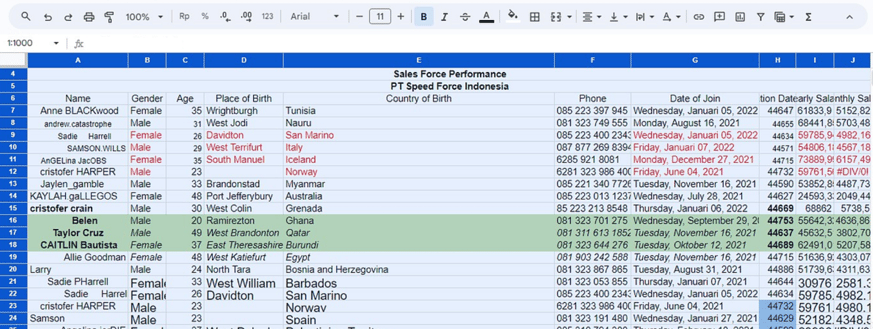
When reporting time comes, the options are limited. You can export a static snapshot and paste it somewhere. You can share the sheet directly, but then everyone needs access, everyone sees everything, and the first person who accidentally edits a cell creates a problem. Or you can rebuild the report manually, which is what most people end up doing.
None of these scale. And none of them keep the data current after the report is shared.
How to Structure a Google Sheet for Reporting
A sheet that works well for reporting has a clear separation between three layers: raw data, calculated data, and what gets displayed.
Raw data is exactly what it sounds like: the original records, untouched. Sales entries, project updates, budget lines. This tab should never be the one you share. It's the source.
Calculated data sits on a separate tab and pulls from the raw layer using formulas like SUMIF, COUNTIF, or QUERY. This is where aggregation happens: totals by month, performance by team, variance against target. If a number in your report ever needs to change, it changes here automatically because the formula pulls from the source.
Display layer is what the reader sees. It pulls from the calculated tab and is formatted for clarity: clean headers, consistent formatting, no stray data. This is the tab you share, embed, or reference in a report.
This structure means the source data can keep updating without anyone touching the display layer. The report stays current on its own.
What Makes a Google Sheets Report Actually Useful
A report answers a specific question for a specific audience. That sounds obvious, but most sheets try to answer everything for everyone, which means they answer nothing clearly.
Before building the display layer, it helps to define three things:
Who reads this report? A Head of Sales and a project coordinator need different information from the same dataset. Build separate views for different audiences rather than one sheet that tries to serve both.
What decision does this report support? If someone reads the report and can't immediately act on it, something is missing or wrong. Every metric should connect to a decision someone needs to make.
How often does the data change? Daily data needs a different setup than monthly data. If something changes every day, the report needs to reflect that without manual intervention. If it's monthly, a simpler structure works fine.
A useful report also has a clear visual hierarchy. The most important number comes first, at the top, in large type. Supporting data follows. Context and detail go at the bottom or on a separate tab. The aim is for readers to be able to understand the key point in the first ten seconds.
Keeping Reports Current Without Manual Work
The biggest friction in Google Sheets reporting is not building the report. It's maintaining it.
Once the three-layer structure is in place, the calculated and display layers update automatically when new data comes in. But that still leaves the question of how the report reaches the people who need it.
Sharing a link works, but it requires the reader to open a separate tool, navigate to the right tab, and remember to check it. In practice, reports shared this way get checked once and then forgotten. That gap between where data lives and where decisions happen is exactly the kind of context switching that costs teams time every week.
A more effective approach is to bring the report into the tools where your team works. If your team uses Confluence for documentation and project pages, embedding the Google Sheet directly into a Confluence page means the report is visible the moment someone opens the page. The data stays live because the embed pulls from the original sheet, not a copy. There is no export, no paste, no formatting.
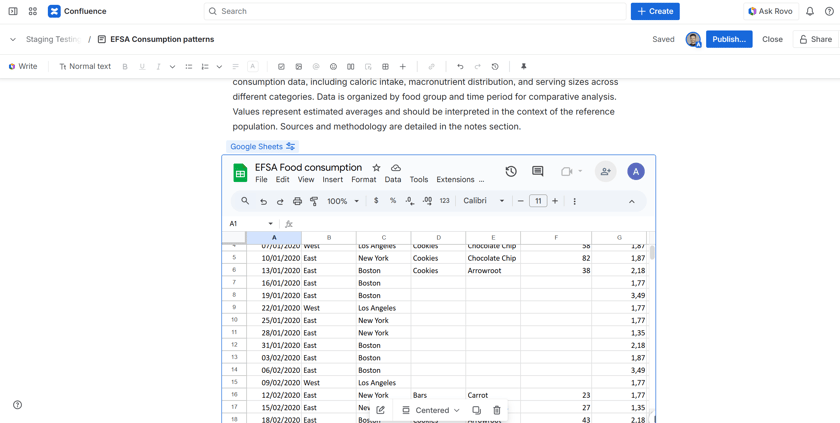
With an app such as Google Sheets for Confluence, you paste the sheet link into a Confluence page and the report appears inline. Readers can interact with filters and scroll through tabs without leaving Confluence. Access is controlled through Google Drive permissions, so the sheet only displays for people who already have access to it. Before going live, it is worth reviewing how permissions are configured — securing your Google Sheets embed is a step that is easy to skip and harder to fix later.
The same logic applies to monday.com boards. If your team manages projects there, a Google Sheet embedded in a board view keeps the data visible alongside the work it relates to.
The result is that the report is where the conversation happens, not somewhere people have to remember to go.
A Practical Reporting Setup for Teams
Here is what a working Google Sheets reporting setup looks like in practice for a small operations team tracking project budgets.
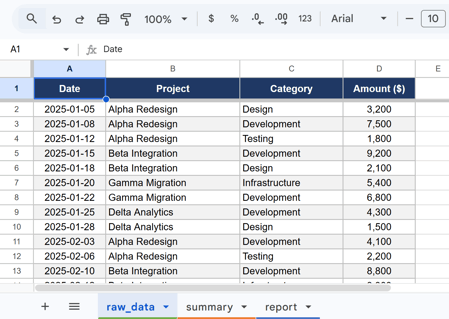
Tab 1 — raw_data: every expense entry with date, project, category, and amount. No formulas, no formatting. Only the team lead can edit this tab.
Tab 2 — summary: SUMIF formulas pull totals by project and category. A QUERY function calculates month-over-month variance automatically.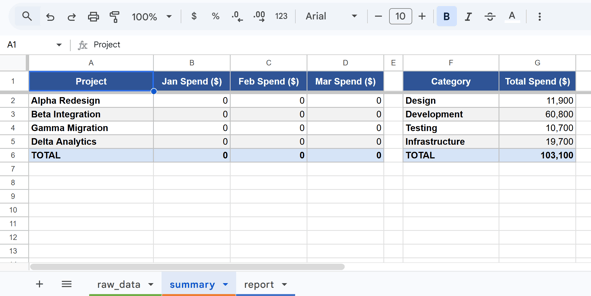
Tab 3 — report: pulls the key numbers from the summary tab into a clean, formatted view. Budget vs. actual by project, percentage remaining, a conditional formatting rule that flags anything over 90% of budget in red.
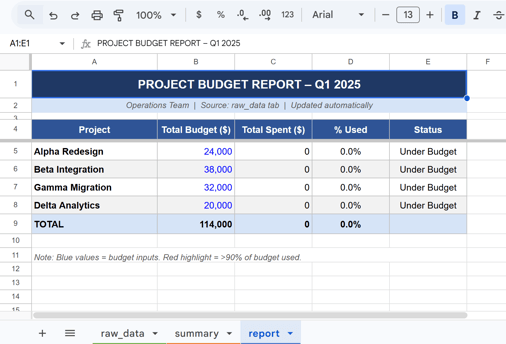
The report tab is then embedded into the team's Confluence project page. Every time someone opens the page for a project update or planning session, the budget report is right there, current, with no action required from anyone.
FAQ
Can I use Google Sheets as a reporting tool for a whole team?
Yes, with the right structure. The key is separating raw data from the display layer so different people can view the report without accessing or editing the source data. Controlling access through Google Drive sharing settings keeps the data secure.
How do I keep a Google Sheets report from going out of date?
Structure the report so the display layer pulls from calculated formulas rather than static values. When new data comes in at the source, the report updates automatically. Embedding the sheet in a tool like Confluence means readers always see the current version without needing to open a separate link.
What is the difference between a Google Sheets report and a dashboard?
A report answers a specific question at a point in time. A dashboard provides an ongoing view of multiple metrics, usually updated in real time. Google Sheets works well for both, but dashboards benefit from a more robust BI tool like Power BI when the data volume grows or when multiple data sources need to be combined. For teams already working in Jira or Confluence, Power BI embedded directly in those tools is often the next step.
How do I share a Google Sheets report without giving edit access?
Set the sharing permission to "Viewer" in Google Drive. The person receiving the link can see the data but cannot change anything. If you embed the sheet in Confluence, the same permissions apply: only users with Viewer or Editor access in Drive can see the embedded sheet.
Does embedding Google Sheets in Confluence require a paid plan?
Confluence Cloud requires a paid plan for most teams. The Google Sheets for Confluence app by Presago is available with a 30-day free trial and does not require a Google Workspace paid tier beyond standard sharing access.